
HubSpot duplicate contacts: how to find, merge, and prevent them (2026)
Tired of HubSpot duplicates messing up your reports? Here's exactly how I find, merge, and prevent duplicate contacts - with native tools and the best third-party apps.
You open your HubSpot CRM on a Monday morning, and there it is. The same prospect listed twice, with slightly different info on each record. Your sales rep already sent them an email last Thursday. Your marketing team enrolled them in a nurture sequence on Friday. And now you're looking at two conflicting activity timelines wondering which one is real.
Sound familiar? If you're managing any HubSpot portal with more than a few hundred contacts, HubSpot duplicate contacts are basically inevitable. They creep in from form submissions, CSV imports, integrations, manual entry, and they quietly wreck your reporting, your automations, and your team's trust in the CRM.
I've helped hundreds of HubSpot teams clean up their data, and the pattern is always the same: duplicates start small, then snowball. The good news is that fixing them (and preventing them from coming back) is very doable once you know where to look.
Key takeaways
Short on time? Here's the gist:
• HubSpot's native Manage Duplicates tool catches basic duplicates, but it's capped at 2,000-10,000 results depending on your plan and can't be customized.
• For serious HubSpot deduplication at scale, Koalify is the best HubSpot-native app I've tested: custom matching rules, bulk merge via workflows, and it works across contacts, companies, deals, and custom objects.
• Prevention beats cleanup every time: clean form submissions, proper imports, and syncing LinkedIn activity directly with HubSpot (via Hublead) reduce duplicates before they happen.
• Build a quarterly data audit routine to keep your database healthy long-term.
If you have 10 minutes to spare, keep reading for the full breakdown.


Ready to fix your outbound process?
Why HubSpot duplicates are a bigger problem than you think
A few duplicate records might seem harmless. But here's what actually happens when they pile up:
Your reporting becomes unreliable. When one contact exists as two records, their engagement data gets split. That lead who opened 5 emails and visited your pricing page 3 times? HubSpot sees two lukewarm leads instead of one hot prospect. Your funnel reports and dashboards tell the wrong story.
Your sales team wastes time. Reps might reach out to the same prospect twice, or two reps contact the same person with different messaging. I've yet to meet a sales leader who thinks that's a good look.
Your marketing costs go up. Every duplicate inflates your contact count. Since HubSpot pricing is partly based on contact tiers, you could be paying for a database that's 10-20% duplicates. That's real money.
Your automations break. Workflows that trigger based on lifecycle stage or lead status can fire incorrectly when the same person has multiple records with conflicting properties. Your lead scoring gets thrown off too.
Your customer experience suffers. Duplicate communications, inconsistent follow-ups, and "didn't we already talk about this?" moments erode trust fast. Especially in account-based selling where every touchpoint matters.
How duplicate contacts get created in HubSpot
Before you can fix HubSpot duplicates, you need to understand why they show up in the first place.
Multiple data entry points
Contacts flow into HubSpot through several channels:

• Manual entry by sales reps (often from business cards, calls, or events)
• Form submissions on your website
• CSV/Excel imports from events, purchased lists, or migrations
• API integrations (Salesforce sync, Zapier, Intercom, etc.)
• HubSpot Chrome extension and Outlook add-in
• LinkedIn imports via tools like Hublead
Each channel creates contacts differently. If the email address doesn't match exactly, HubSpot creates a new record.
Good to know: HubSpot automatically deduplicates contacts with the exact same email address. But if someone uses john@company.com at work and john.doe@gmail.com personally? That's two records, and HubSpot won't catch it automatically.
The usual suspects
• Typos: jon@company.com vs john@company.com
• Multiple email addresses: Work, personal, old company email
• Inconsistent formatting: "John Smith" vs "john smith" vs "J. Smith"
• Integration overlaps: Multiple tools syncing the same contacts with slightly different data
• No data hygiene protocols: No team-wide standards for how contacts are created or updated
How to find and merge duplicate contacts in HubSpot
Now the practical part. Let me walk you through the three main approaches to find and deduplicate HubSpot contacts, from basic to advanced.
Method 1: HubSpot's Manage Duplicates tool
HubSpot has a built-in duplicate management tool that works reasonably well for basic deduplication.
How to access it:
1. Navigate to CRM > Contacts from your dashboard
2. Click Actions > Manage duplicates
3. HubSpot shows you potential duplicate pairs, ranked by confidence score
4. Review each pair and click Merge to combine them

The tool identifies potential duplicates using email addresses, first and last name, phone numbers, IP country, zip code, and company name. With Operations Hub, it also uses machine learning to cross-reference multiple data points for better accuracy.
What I like: It's free, built-in, and catches the obvious duplicates quickly. No setup required.
Where it falls short:
• Capped results: Professional plans see up to 2,000 duplicates. Operations Hub Pro bumps that to 5,000, and Enterprise to 10,000. If you have more duplicates than that, you're flying blind.
• No custom rules: You can't define your own matching logic. HubSpot decides what's a duplicate.
• One pair at a time: Clicking through hundreds of pairs is slow and painful.
• Contacts and companies only: Deals, tickets, and custom objects are not covered.
• Scans run once daily, so newly created duplicates aren't caught immediately.
Method 2: how to merge contacts in HubSpot manually
Sometimes you spot duplicates yourself while working in the CRM. Here's the step-by-step process to merge contacts in HubSpot manually:
1. Go to CRM > Contacts
2. Open the contact you want to keep as the primary record
3. Click Actions > Merge
4. Search for and select the duplicate contact
5. Review the merged properties side by side

6. Click Merge to finalize
What happens when HubSpot merges two contacts:
• Email engagement data and unique form submissions are combined from both records
• All activities, notes, and associations merge into the primary record
• The creation date of the oldest record is preserved
• The primary contact's email opt-out preferences are kept
• Original source from the primary record is retained
Pro tip: When choosing which record to keep as primary, pick the one with the most recent engagement and the earliest creation date. You want the longest history with the most current information.
You can also click "Set properties to review" to compare all contact properties side by side. This is especially useful when records have conflicting lifecycle stages, lead statuses, or owner assignments.
Method 3: deduplicate HubSpot at scale with Koalify
If you're dealing with hundreds (or thousands) of duplicates, or if you want ongoing deduplication that actually prevents the problem from recurring, you need something more powerful than HubSpot's native tool.
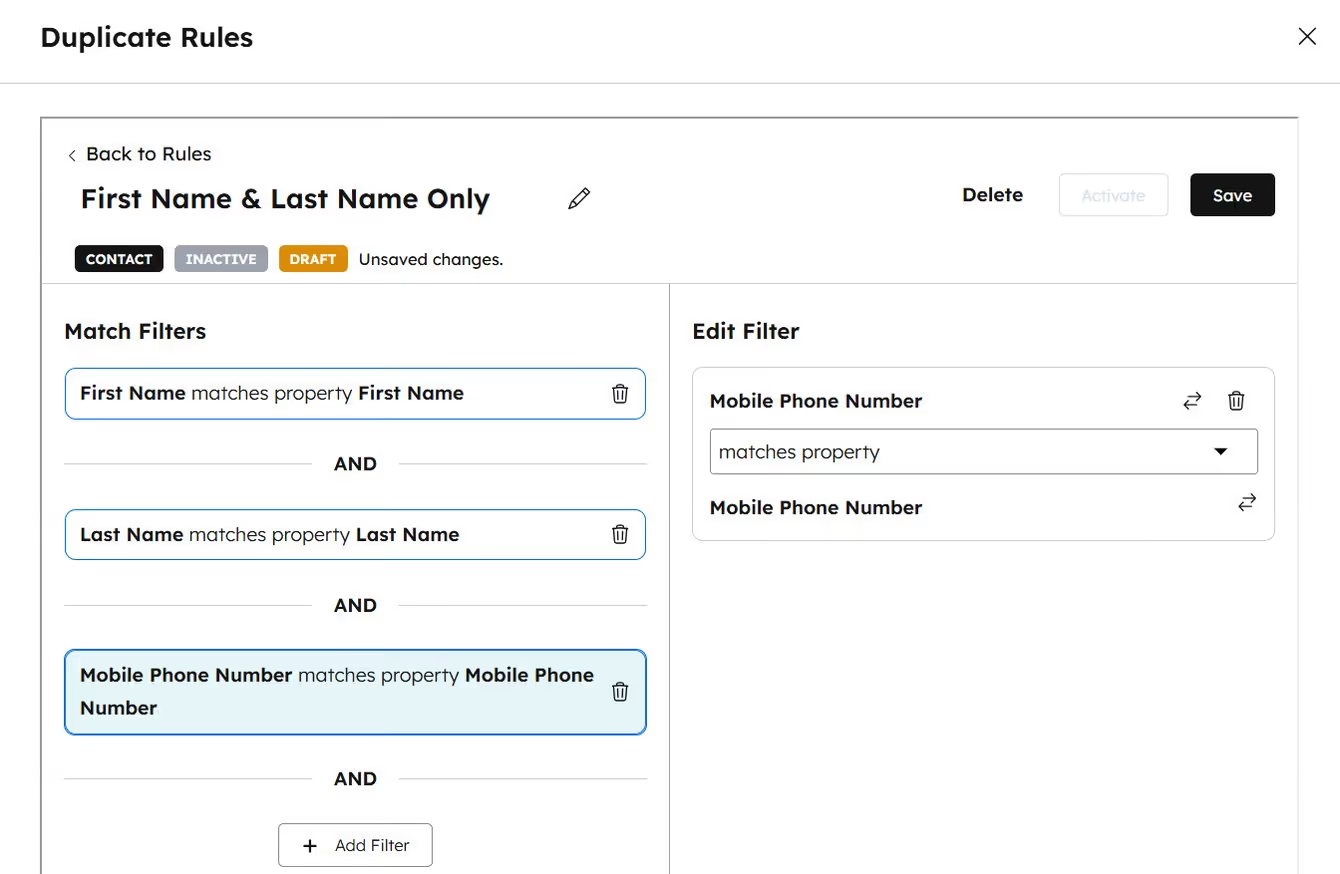
This is where Koalify comes in, and honestly, it's the best HubSpot deduplication app I've tested.
Why I recommend Koalify over every other option:
It's fully native to HubSpot. Koalify lives entirely inside your HubSpot portal. No separate login, no external interface to learn. Your team works where they already work.
Custom matching rules. You define exactly how Koalify identifies duplicates. Match on any combination of HubSpot properties, including custom fields. Want to match on first name + company domain + phone number? You set the rules.
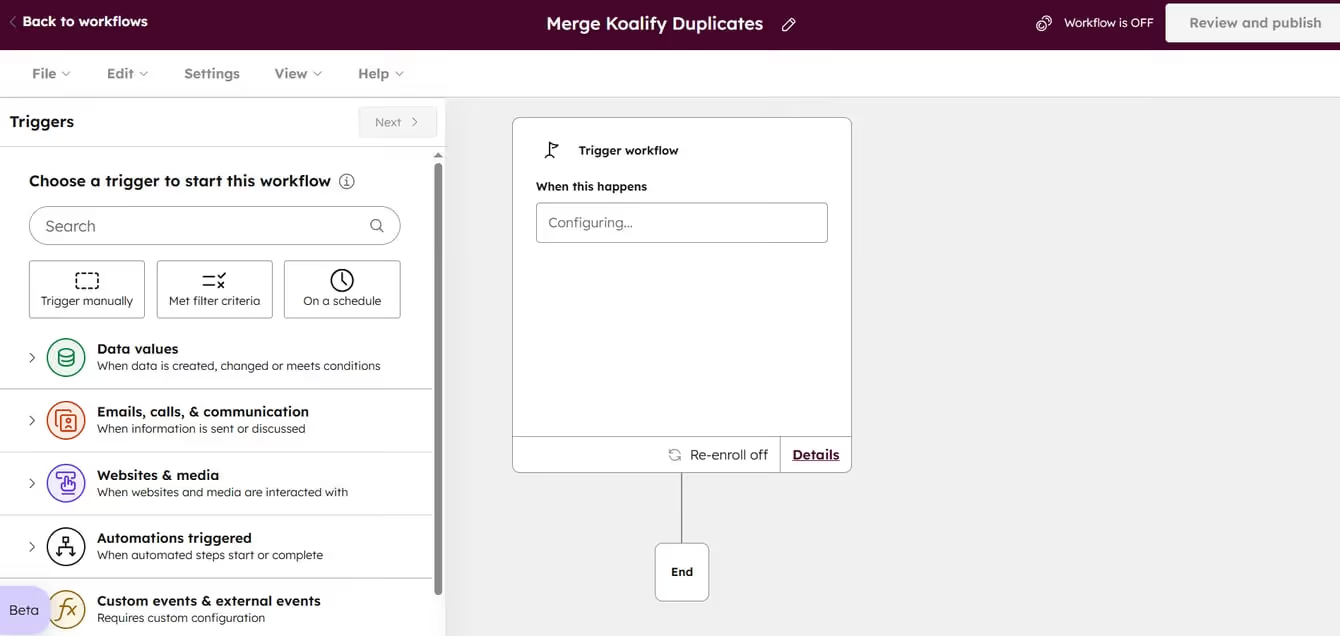
Bulk merge via HubSpot workflows. This is the real game-changer. You can set up HubSpot workflows that automatically merge duplicates based on your rules. Thousands of duplicates merged while you sleep. You can even combine this with workflow goals to track how many duplicates get caught each month.
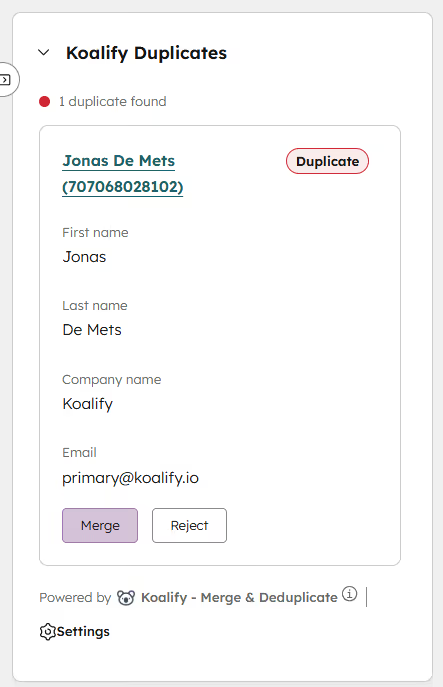
CRM cards for quick action. When you're on a contact, company, deal, or ticket page, Koalify shows a CRM card with duplicate suggestions right where you're already working. Find and merge duplicates 3x faster than manual review.
Works beyond contacts. Koalify handles companies, deals, tickets, and even custom objects. Most other tools only cover contacts and companies.
Enterprise-grade security. SOC 2 Type II and ISO 27001 certified, GDPR compliant, with SSO support. If your security team has questions, Koalify has the answers.
With 4,000+ installs and a perfect 5.0 rating from 100+ reviews on the HubSpot Marketplace, it's the most trusted deduplication app in the ecosystem.
For more on how to find duplicates effectively, check out Koalify's guide to finding duplicates in HubSpot.
Comparing the best HubSpot deduplication tools
Here's how the main options stack up:
FeatureHubSpot nativeKoalifyInsycleDedupelyPriceFree (Ops Hub for ML)Based on record count, free plan availableHigher tier pricingMid-rangeCustom matching rulesLimitedFull (any property)FullPartialBulk merge automationNoYes, via HubSpot workflowsYesLimitedCustom objectsNoYesNoNoNative HubSpot UIYesYesNo, external appNo, external appCRM cardsNoYesNoNoDuplicate cap2K-10K depending on planUnlimitedUnlimitedUnlimitedSecurity certsN/A (HubSpot own)SOC 2 Type II + ISO 27001SOC 2BasicObject coverageContacts + companiesAll objectsContacts + companiesContacts + companies
My recommendation: Start with HubSpot's native tool for a quick assessment. If you find more than 50-100 duplicates, or if you want to manage duplicates on an ongoing basis, go with Koalify. It's the best combination of power, simplicity, and HubSpot-native experience I've found.
Insycle is worth considering if you need broader data management beyond just deduplication (standardization, association management, bulk operations). But the learning curve is steeper and the interface lives outside HubSpot.
Dedupely is a simpler, no-frills option for smaller teams. It gets the job done for basic dedup but lacks the automation and custom object support that growing teams need.
Strategies to prevent HubSpot duplicate contacts
Finding and merging duplicates is important, but preventing them is where the real ROI lives. Here are the strategies that actually work:
Clean your form submissions
When someone submits a form on your site, HubSpot checks their browser cookie (user token) against existing contacts. If the submission comes from the same browser, HubSpot updates the existing record instead of creating a new one.
But there are edge cases that create duplicates:
• Different devices: Same person, different browser token = potential duplicate
• Cleared cookies: No token to match = new record created
• Meeting links: New email addresses submitted via meeting links always create a new contact
What to do: Always use email as the primary identifier on forms. Consider lead form routing rules that check for existing records before creating new ones.
Prepare your imports properly
Messy CSV imports are one of the biggest sources of HubSpot duplicates. Before importing:
• Include email addresses for every contact (this is how HubSpot deduplicates during import)
• Standardize formatting before importing (names, phone numbers, addresses)
• Use Record ID or a unique property value when updating existing contacts
• Stick to UTF-8 encoding for international characters
• One sheet per file, with a clear header row mapping to HubSpot contact properties
If you're importing LinkedIn contacts, check out our guide on how to import LinkedIn contacts to HubSpot for a clean, duplicate-free process.
Sync LinkedIn with HubSpot to avoid duplicates
This is one of the most underrated prevention strategies I know, and it's where Hublead comes in.
Instead of manually creating contacts from LinkedIn profiles (which almost always creates duplicates), Hublead syncs your LinkedIn activity directly with HubSpot. It cross-checks LinkedIn profiles against existing HubSpot records automatically.
This means:
• Job title changes from LinkedIn update the existing record (not a new one)
• LinkedIn messages sync into the correct contact's timeline
• Your Sales Navigator data flows into existing CRM records instead of creating duplicates
• Your team has one accurate, centralized view of every prospect
If your team does any amount of LinkedIn prospecting (and in B2B, who doesn't?), this alone can cut your duplicate creation rate significantly.
Set up ongoing deduplication workflows
If you're using Koalify, you can create HubSpot workflows that automatically detect and merge duplicates on an ongoing basis. This turns deduplication from a periodic cleanup into a continuous, automated process.
I recommend pairing this with HubSpot sequences that are built to handle clean data, so your outreach stays consistent and professional.
Using HubSpot Operations Hub for smarter deduplication
If you're on Operations Hub Professional or Enterprise, you get access to extra features that make deduplication easier:
Machine learning detection
Operations Hub's ML model analyzes multiple signals (name, email, country, phone, zip code, company) to identify likely duplicates. It's more sophisticated than simple field matching and improves over time as it learns from your merge decisions.
Data Quality Command Center
The Data Quality Command Center gives you a bird's-eye view of your CRM data health. It highlights:
• Total duplicate records detected
• Properties with formatting issues
• Data sync errors across integrations
I recommend checking this dashboard monthly as part of your data audit routine.
Data sync for consistency
If you're syncing data between HubSpot and other apps (Salesforce, Intercom, etc.), Operations Hub helps ensure consistent data flow. This prevents the "same contact, different data" problem that often creates duplicates. It's especially important when using HubSpot for multichannel outbound.
Building a long-term duplicate management routine
Fixing duplicates once is great. Keeping them from coming back is what separates clean CRMs from messy ones. Here's the routine I recommend:
Quarterly data audits
Set a recurring calendar reminder. During each audit:
1. Run HubSpot's Manage Duplicates tool and review new pairs
2. Check your Koalify dashboard for flagged duplicates
3. Review contact lists for suspicious patterns (same company, similar names)
4. Verify that integrations aren't creating new duplicates
5. Check your HubSpot data enrichment tools for conflicts
The end of a business quarter is the perfect time for a thorough CRM data audit, especially when you're preparing attribution reports.
Team training
Your CRM is only as clean as the people using it. Make sure your team knows:
• How to search for existing contacts before creating new ones
• Standard formatting for names, phone numbers, and addresses
• When to use the HubSpot Sales extension vs manual entry
• How to flag potential duplicates they spot during daily work
Automate what you can
Between HubSpot's native tools and Koalify's workflow automation, you can automate most of your deduplication process. The goal is to catch duplicates within hours of creation, not months later during a manual cleanup.
Combine automated deduplication with HubSpot lead management best practices, and you'll have a CRM your whole team actually trusts.
Ready to fix your outbound process?
How do I merge contacts in HubSpot?
Open the contact you want to keep as the primary record, click Actions > Merge, search for the duplicate, review properties side by side, and click Merge. For bulk merging at scale, use Koalify which lets you merge thousands of duplicates via HubSpot workflows automatically.
What strategies help prevent duplicate contacts in HubSpot?
The most effective strategies are: using email as the primary unique identifier across all forms and imports, standardizing data formatting before imports, syncing LinkedIn data directly with HubSpot using Hublead (instead of manual entry), and setting up automated deduplication workflows with Koalify.
Can HubSpot duplicate contacts impact my reporting?
Yes, significantly. Duplicates split engagement data across multiple records, which distorts your funnel reports, messes up lead scoring, triggers incorrect workflow automations, and inflates your contact count (which can increase your HubSpot bill).
Why do duplicate contacts keep appearing in HubSpot?
The most common causes are: contacts entering through multiple channels with slightly different data, people using multiple email addresses, typos in data entry, integrations syncing overlapping records without proper deduplication rules, and no team-wide data hygiene standards.
How does HubSpot's Manage Duplicates tool work?
HubSpot scans your database daily using email, name, phone, country, zip code, and company name to identify potential duplicates. It shows pairs ranked by confidence score. Professional plans see up to 2,000 results, Operations Hub Pro up to 5,000, and Enterprise up to 10,000. The tool covers contacts and companies only.
What's the best third-party tool for HubSpot deduplication?
I recommend Koalify. It's fully native to HubSpot, supports custom matching rules on any property, bulk merge via workflows, CRM cards for quick merging, and works across all object types including custom objects. It has a 5.0 rating from 100+ reviews and 4,000+ installs on the HubSpot Marketplace.
Is HubSpot deduplication available on all plans?
The basic Manage Duplicates tool is available on Professional and Enterprise plans. Operations Hub adds ML-powered detection and higher duplicate caps. For unlimited, customizable deduplication, third-party apps like Koalify work with any HubSpot plan.